
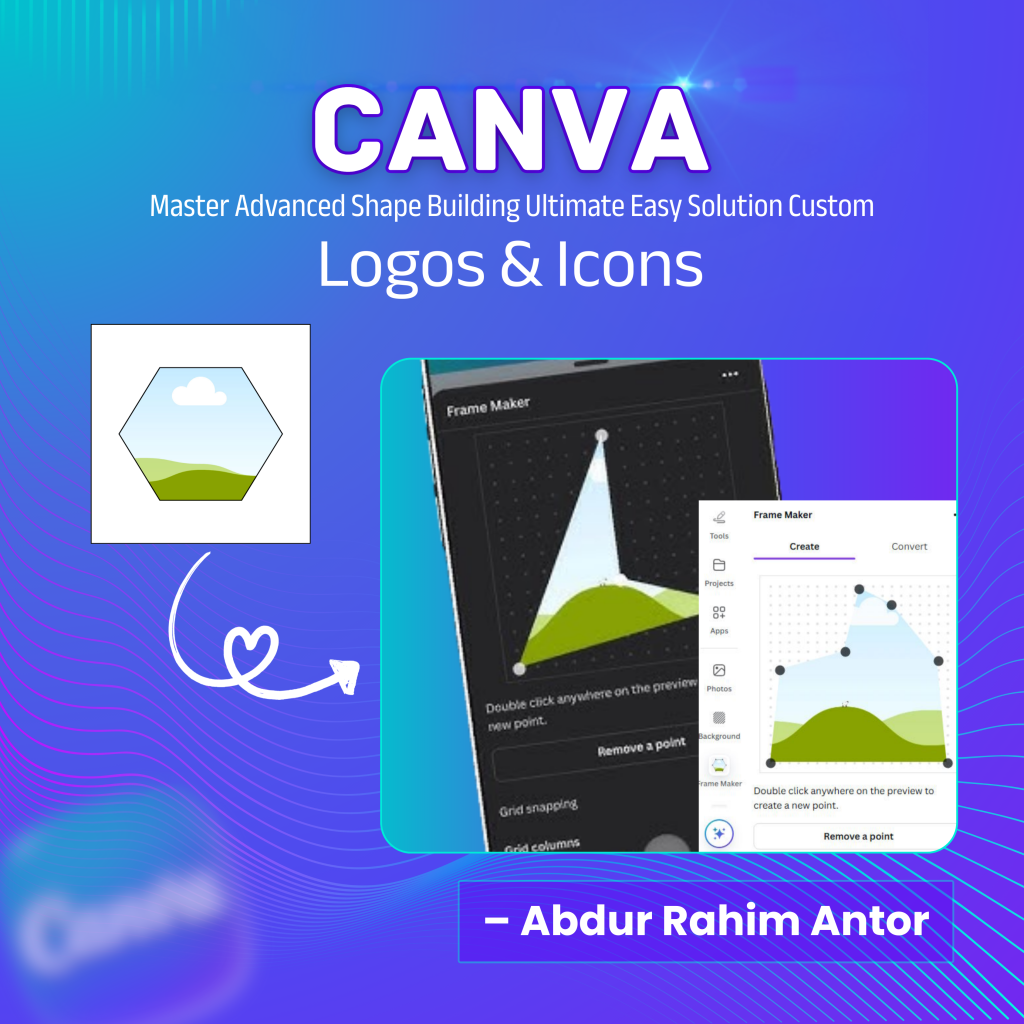
In the competitive world of digital branding, generic templates are no longer enough to build authority. Entrepreneurs today need unique visual identities, but most are intimidated by the complexity of professional vector tools. This is where advanced shape building in Canva using the Frame Maker app becomes a critical skill for business growth.
Why Every Entrepreneur Needs Custom Shapes
The foundation of any great design is its “Skeleton” or structural layout. While Canva offers thousands of pre-made shapes, they often lack the flexibility required for original branding. Frame Maker serves as the practical alternative to Adobe Illustrator’s ‘Shape Builder’ tool, allowing you to create custom-made icons, logos, and frameworks in minutes.
1. Precision with Path Manipulation
Frame Maker provides an intuitive interface to control individual points on a shape’s path. Unlike standard drag-and-drop elements, this allows for a higher degree of customization. Whether you are designing a unique geometric logo or a custom frame for your social media posts, this tool gives you the precision that builds brand trust.
2. Grid Snapping: The Secret to Professional Icons
One of the most powerful advanced shape building in Canva features is grid snapping. It ensures that every point you place is perfectly aligned with the overall structure. This feature is essential for creating icons that look balanced and professional across all digital platforms.
3. Creating a Design Skeleton
Before adding colors and images, a professional designer focuses on the structure. Frame Maker allows you to map out your design’s layout, serving as the blueprint for your final creative output. This step-by-step approach simplifies the creative process, making it an easy design solution for busy entrepreneurs.
Practical Example: Designing a Custom Minimalist Logo
- Open the Frame Maker app in Canva.
- Use the Grid Snapping to place four points in a diamond shape.
- Adjust the Path Points to curve the top edges.
- Convert the path into a Custom Frame.
- Drop your brand color or a texture into the frame to finalize your unique logo.
FAQ Section
- Q1: Is this tool free? No, Frame Maker features are best utilized with a Pro account.
- Q2: Can I make 3D shapes? You can create the 2D structure and add gradients to give a 3D effect.
- Q3: Is it mobile-friendly? Yes, you can build shapes on the Canva mobile app as well.
